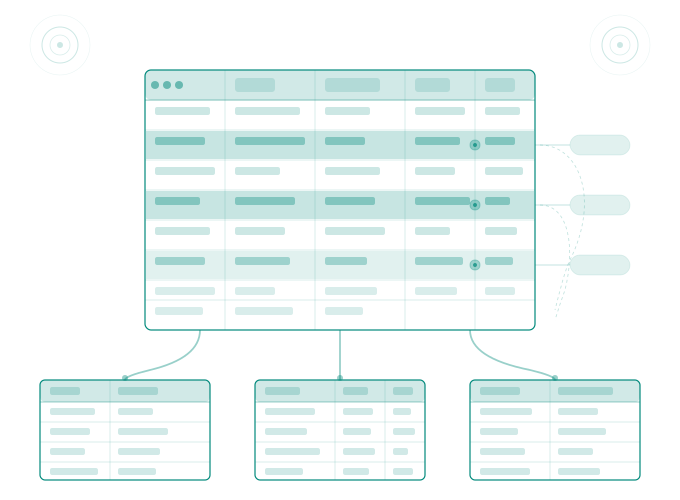
HubDB started as a way to store small, structured datasets inside HubSpot. A team directory with 15 people, A list of office locations, A handful of pricing tiers. The idea was simple: put data in rows and columns, connect it to a page template, and let the page update automatically when the data changes.
That is still a good idea. The problem is that teams and agencies took it much further than that.
Today, HubDB tables power resource libraries with 400 entries, product catalogs with dynamic filtering, event directories that span multiple years, and multi-location pages for franchises with over 100 sites. When you connect HubDB to dynamic pages, every row becomes its own URL. That transforms a simple data table into a content management system within your content management system.
And at that scale, the editing experience falls apart.
The row-by-row problem
HubDB's editing interface is designed for small tables. You open the table, you see the rows, you click into a cell, you edit it, you save. That works when you are updating a phone number in a 12-row office directory.
When your resource library has 300 rows and you need to update the category taxonomy because marketing decided "Whitepapers" should now be "Guides," you are clicking into 300 individual cells. There is no find and replace inside HubDB. There is no multi-select for rows. There is no way to filter to just the rows that match a specific value and batch-update them. The HubSpot community has been requesting bulk edit functionality for HubDB tables since at least 2024, and as of now, the table interface still does not support it.
The workaround most teams discover is the CSV export-import cycle. Export your table to CSV, open it in Excel or Google Sheets, make your changes there, and re-import. This works, but it comes with friction that adds up.
First, the import has two modes: add rows or replace all rows. If you choose "add," it only creates new rows and does not touch existing ones. If you choose "replace," it deletes everything in the table and rebuilds it from the CSV. There is no "update matching rows" option. That means every import is either additive-only or fully destructive. If you are updating existing data, you have to replace the entire table and hope your CSV is perfect.
Second, the column mapping step during import can silently mismap fields if your CSV headers do not match the HubDB column names exactly. A column called "Category" in your spreadsheet might not map to "category" in HubDB if the casing is different, and the import tool does not always flag this clearly. You end up with blank cells or data in the wrong columns.
Third, and this is the one that catches agencies off guard, replacing a published HubDB table means there is a brief moment where the table has been wiped and not yet rebuilt. If your dynamic pages are pulling from that table in production, visitors who land on the site during that window could see empty pages or errors. For a small table, the window is milliseconds. For a 500-row table with rich text columns, it can be noticeably longer.
The migration problem nobody talks about
On one of our migration projects, we migrated 48 HubDB tables. Not 4. Not 10. Forty-eight separate tables powering different parts of the site across 11 languages.
Some of those tables were straightforward. A list of countries with names, ISO codes, and flag images. Easy to map, easy to import. Others were deeply interconnected. HubDB supports a "Foreign ID" column type that lets one table reference rows in another table. This is HubSpot's version of a relational join. When your resources table has a Foreign ID column pointing to a categories table, and that categories table has its own Foreign ID pointing to a parent categories table, you have a three-level dependency chain.
Migrating that data requires loading the tables in the right order. The parent categories table has to be populated first, because the categories table needs those row IDs to create the Foreign ID references. Then the categories table gets populated, and only then can the resources table be loaded with its Foreign ID references pointing to the now-existing category rows.
Getting that sequence wrong means broken references. And because HubDB row IDs are generated by HubSpot, not by you, the IDs in your destination portal will be completely different from the IDs in your source portal. You cannot just copy the data. You have to extract from the source, map the relationships, create the parent records first to get the new IDs, then transform the child records to reference the new IDs, then load those.
If that sounds familiar, it is the same ETL problem that applies to all website content. HubDB just happens to make the dependency chain explicit through the Foreign ID system.
What breaks when HubDB tables grow
There are specific scaling problems that teams hit as their HubDB usage expands.
The 10,000 row limit is the most obvious one. HubSpot caps each table at 10,000 rows. For most use cases, that is plenty. But teams running product catalogs or large directories occasionally hit this wall and have to split their data across multiple tables, which adds architectural complexity and makes queries harder.
Rich text columns are the hidden scaling issue. HubDB allows rich text columns with a 65,000 character limit per cell. When teams use these columns to store full content blocks, descriptions, or formatted HTML, the table size balloons. A 200-row table with two rich text columns can contain more data than a 2,000-row table with simple text fields. Export-import cycles get slow. The editing interface becomes sluggish. And the risk of a malformed import corrupting the rich text formatting increases.
The publishing model creates another friction point. HubDB tables have a draft and published state, similar to HubSpot pages. When you edit a table, your changes go into draft until you explicitly publish. This is actually a useful safety feature for small tables. For large tables that multiple people are editing throughout the day, it becomes a coordination problem. One person publishes the table to push their changes live, and in doing so they also publish another person's half-finished edits that were sitting in draft. There is no row-level versioning. Publishing is all or nothing.
Then there is the querying limitation on the CMS side. When your template pulls data from HubDB using HubL, you are limited to 10 calls to hubdb_table_rows() per page render. If your page needs to pull from multiple tables, filter by multiple criteria, and display results across different sections, you can exhaust that limit quickly. Developers end up restructuring their templates or denormalizing their data specifically to work around this constraint.
HubDB is a database that does not act like one
The fundamental tension with HubDB is that it looks and behaves like a spreadsheet when you interact with it, but it is being used as a database. Spreadsheets are great for ad-hoc editing and small datasets. Databases need bulk operations, transactional updates, query optimization, and relationship management.
HubDB gives you the spreadsheet interface without the spreadsheet power tools (no formulas, no conditional formatting, no find and replace) and the database structure without the database management tools (no SQL queries, no bulk updates, no row-level versioning, no migration utilities).
This gap is exactly why teams end up in the CSV export-import cycle. They are trying to use spreadsheet tools to manage what has become a database problem. And the CSV cycle, while functional, introduces risk with every round trip.
The better approach is to treat HubDB tables the way you would treat any other CMS content type that needs management at scale. Pull the data into a proper editing environment where you can sort, filter, find and replace, and batch-update. Make your changes with the ability to review them before they go live. Push the updates back with a record of what changed.
That is how we handle HubDB at Smuves. Tables are treated as first-class content types alongside pages, posts, and redirects. You pull a table into the editing interface, see every row and column, make bulk changes with the same tools you would use for any other content type, and push the updates back. No CSV round-tripping, no risk of a destructive replace wiping your production data, and a full audit log of every change.
When HubDB is the right choice and when it is not
Despite the scaling challenges, HubDB is genuinely useful for specific scenarios. Structured data that changes infrequently and has fewer than a few hundred rows is ideal. Team directories, location pages, simple product listings, FAQ databases, and event calendars all work well. The setup cost is low, the connection to dynamic pages is powerful, and the CMS-native integration means no external systems to maintain.
HubDB becomes the wrong choice when the dataset is large enough to need real bulk editing, when multiple people need to edit the table simultaneously without stepping on each other, when the relationships between tables are complex enough that loading order matters, or when the data changes frequently enough that the publish-all-or-nothing model creates risk.
For those scenarios, teams typically end up building custom integrations where data lives in an external system (Airtable, Google Sheets, or a proper database) and syncs to HubDB through the API. This works but adds infrastructure complexity. The alternative is managing HubDB data through a tool that gives you bulk editing capabilities without requiring you to rebuild your architecture.
The honest assessment is that nobody at most companies fully owns the HubDB layer. Marketing uses the tables but does not manage the structure. Development built the tables but does not maintain the data. And the tables accumulate rows, columns, and complexity without anyone doing a periodic audit of whether the architecture still makes sense.
If you are running more than five HubDB tables in production, the single best thing you can do is export every table, inventory the total row counts and column structures, identify which tables have unused columns or stale data, and clean them up before scaling further. The same audit-first approach that applies to CMS migrations applies to HubDB management. Know what you have before you try to change it.