
How to Set Up the Smuves HubSpot App
This guide explains how to connect Smuves to your HubSpot account, fetch your CMS content, and start bulk editing.
With the Smuves HubSpot app, you can pull all your CMS content into a single dashboard and make bulk changes across pages, blog posts, redirects, HubDB tables, and more. Instead of editing content one page at a time inside HubSpot, you can search, filter, update, and replace content across your entire site at once.
Step 1: Install the Smuves app from the HubSpot Marketplace
Start by opening the Smuves app listing on the HubSpot App Marketplace.
Click Connect app. HubSpot will ask you to choose the HubSpot account where you want to install Smuves. Select the correct account and continue.
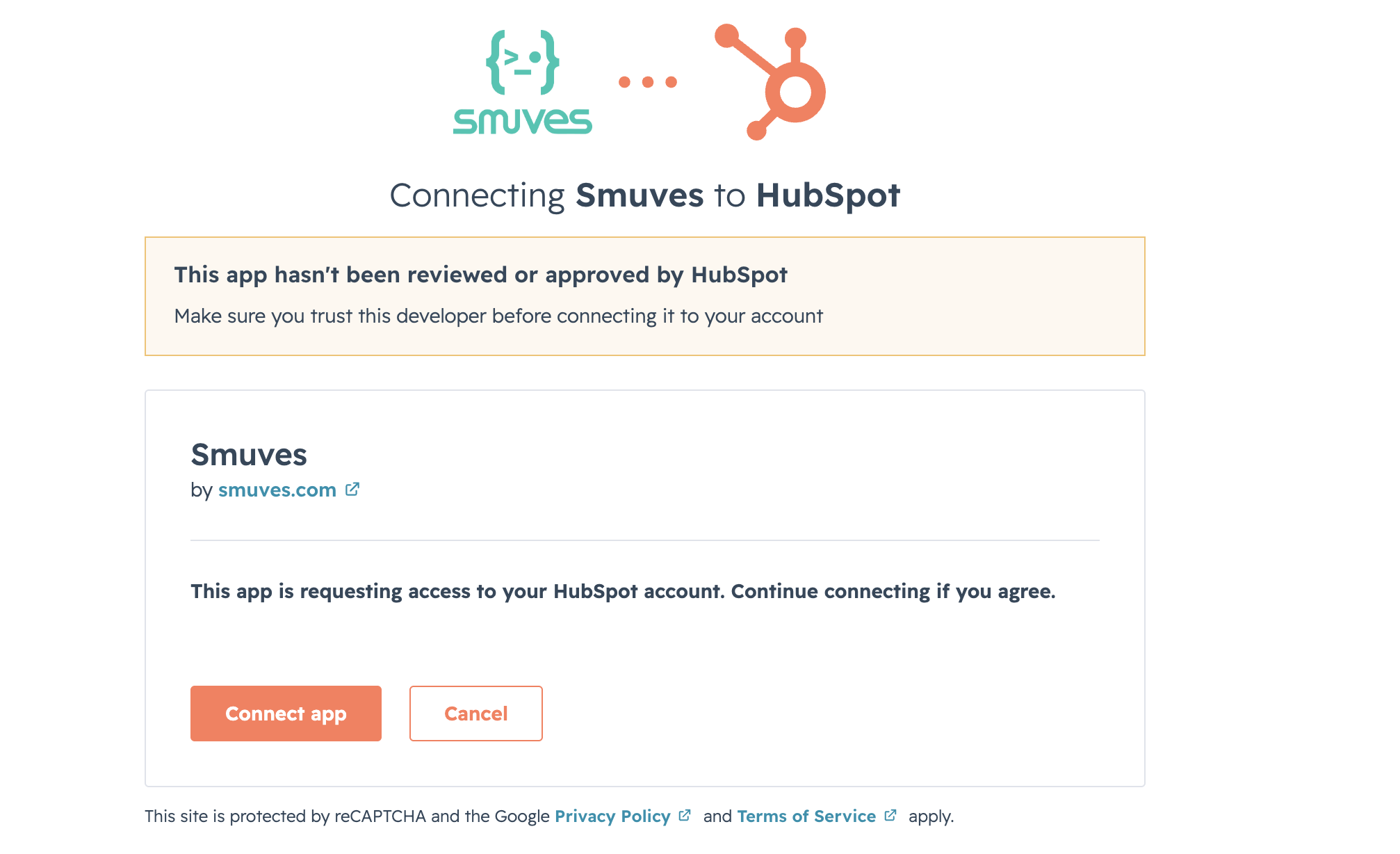
After selecting the account, review the requested permissions and approve the connection. Smuves requests access to your CMS content (pages, blog posts, landing pages, redirects, and HubDB tables) so it can read and write content on your behalf.
Step 2: Complete the connection
After you approve the HubSpot permissions, Smuves will complete the OAuth authentication process.
Once the connection is successful, you will be redirected to the Smuves dashboard. Your HubSpot portal now appears as a connected platform.
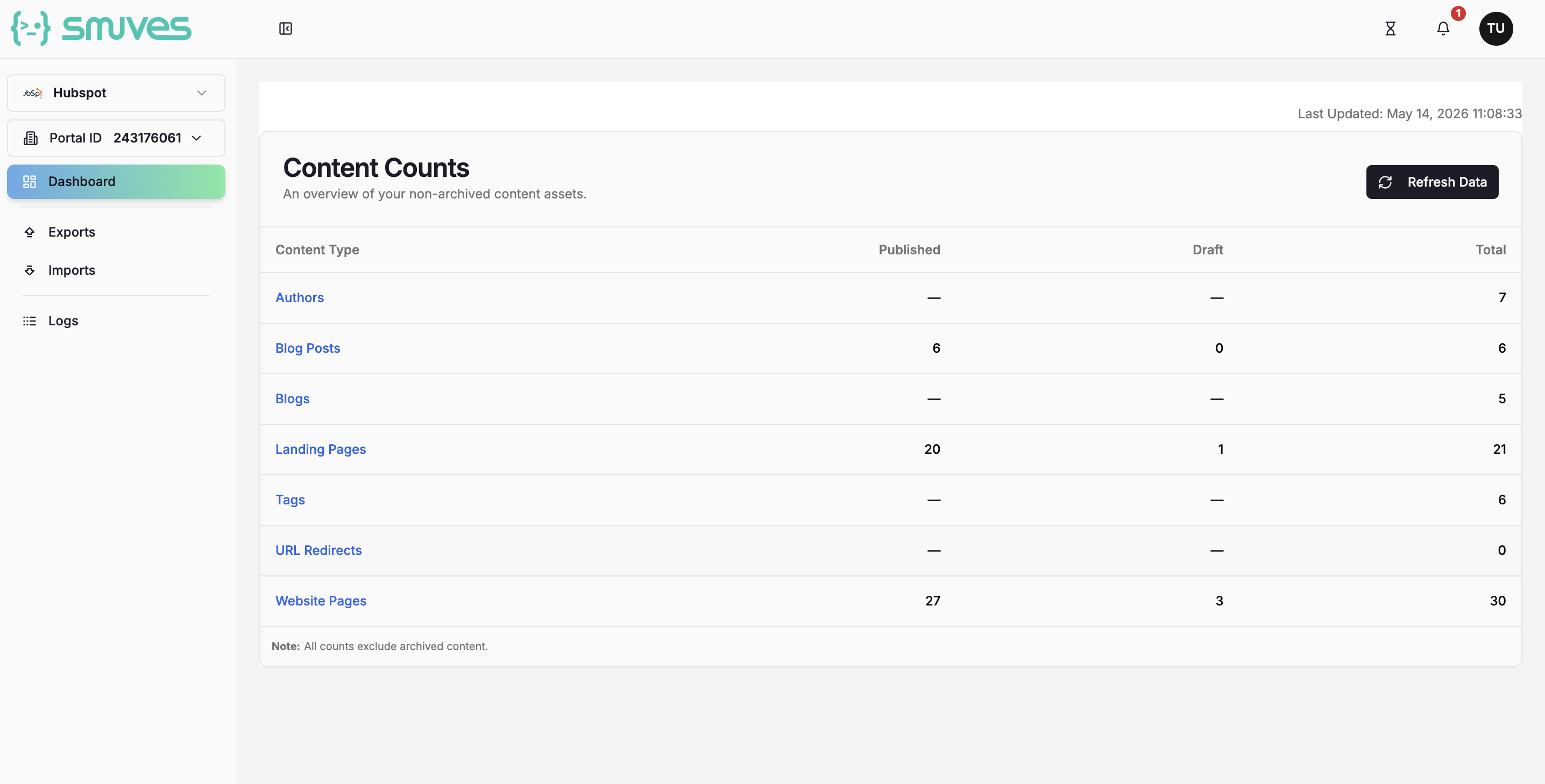
At this point, your HubSpot account is connected to Smuves. You can verify the connection status on your dashboard. A green indicator means the portal is active and ready.
Step 3: Fetch your CMS content
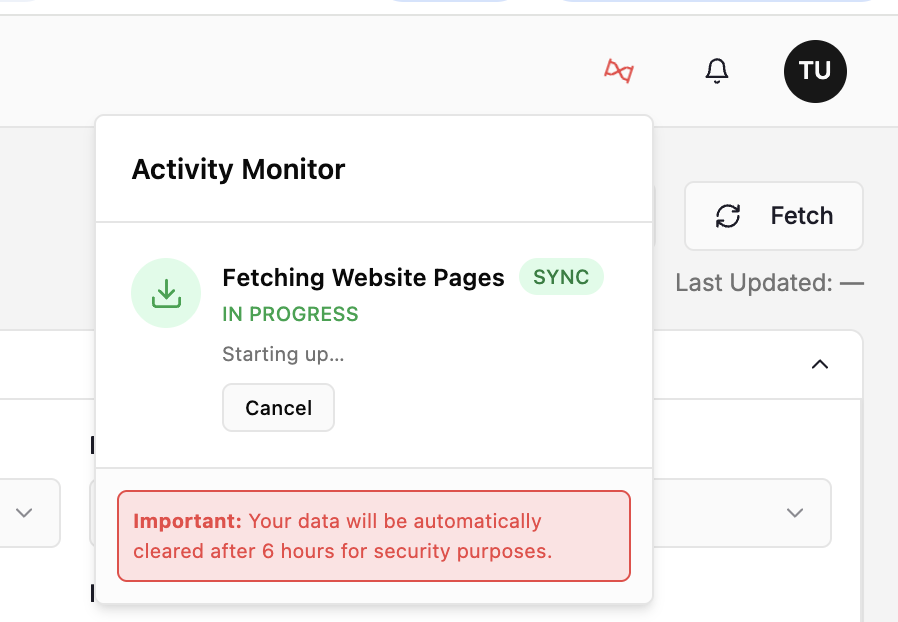
To fetch your CMS content, go to exports and, click Fetch to pull all CMS content from your connected HubSpot portal.
Smuves will fetch your data from chosen content type. Depending on the size of your portal, this may take a few seconds to a few minutes.
Once the scan completes, your dashboard will show content counts for each content type. You can click into any content type to see all records in a table view.
Step 4: Make your first bulk edit
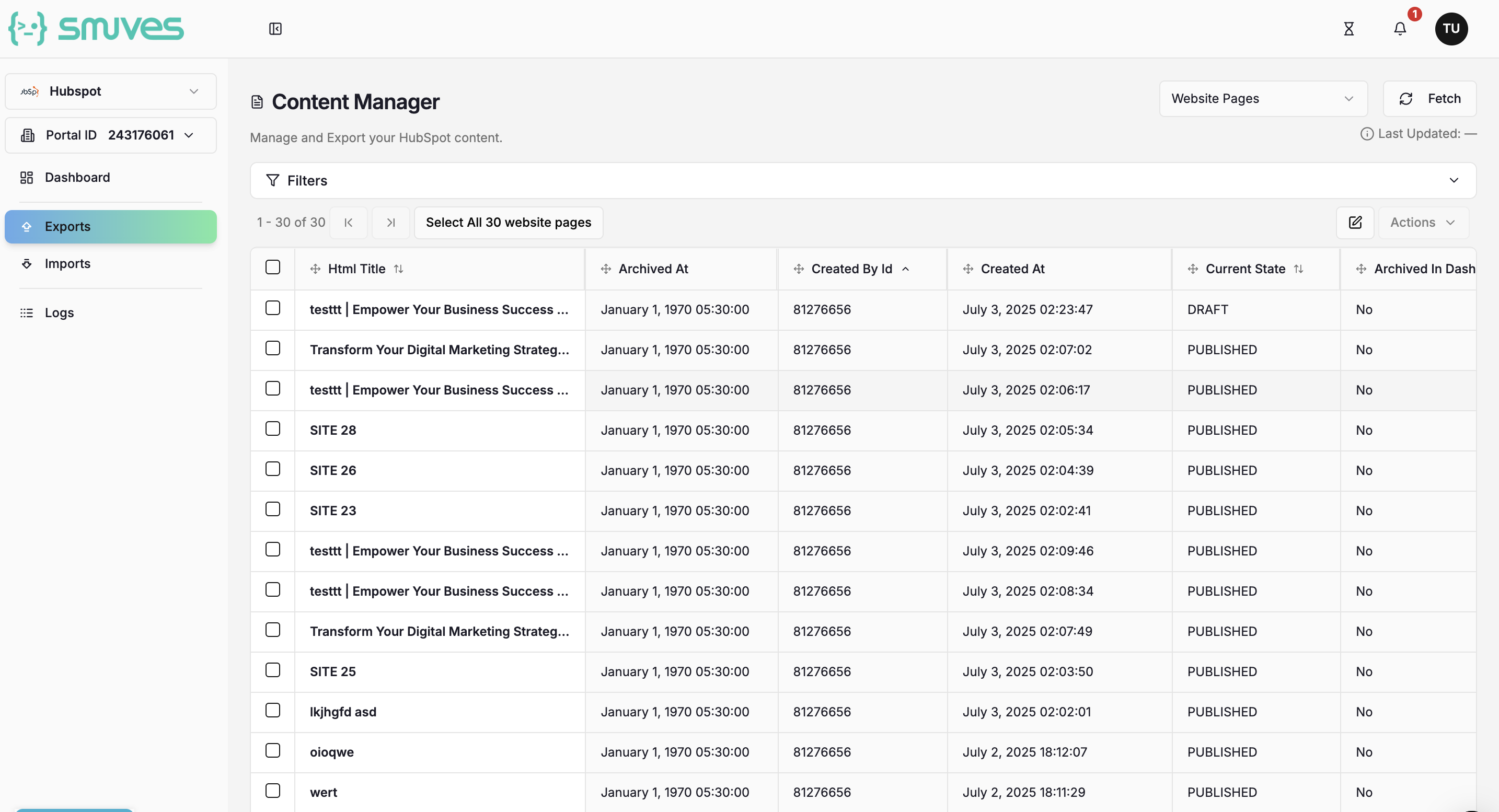
Select a content type from the dropdown at the top right, for example Website Pages, to load all records in the table view. You will see all your records with columns for each field.
Use the Filters panel to narrow down your view. You can filter by Author Name, Campaign, Domain, Language, Name, Slug, Publish Date, State, and more. Click Apply Filters to update the table. Select the records you want to update by checking the boxes next to them, or click Select All to bulk select every record.
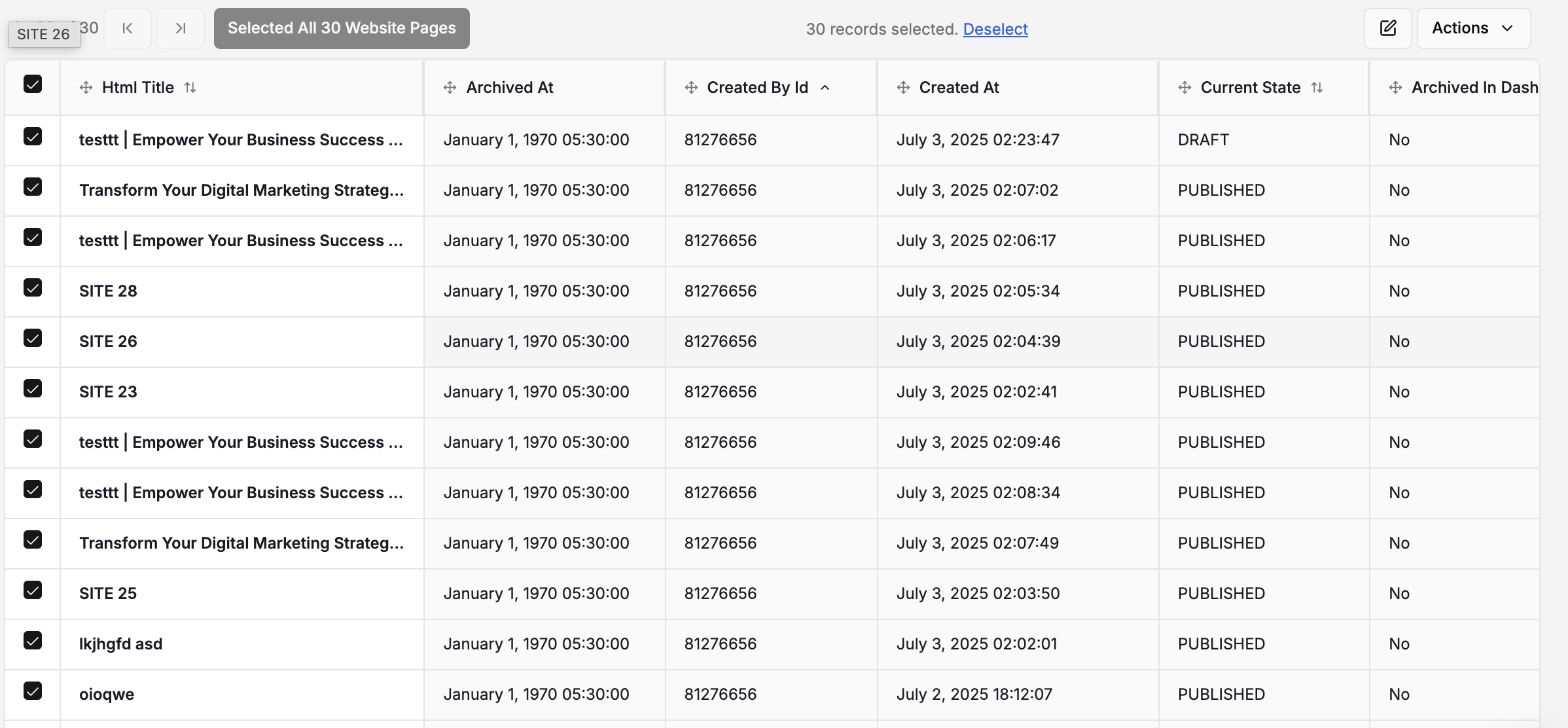
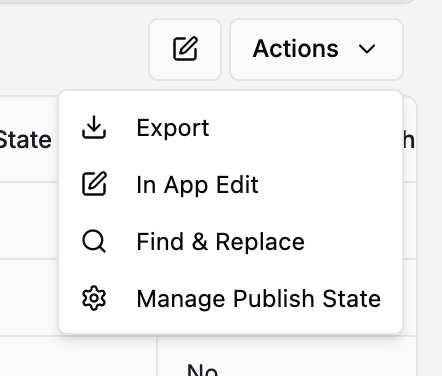
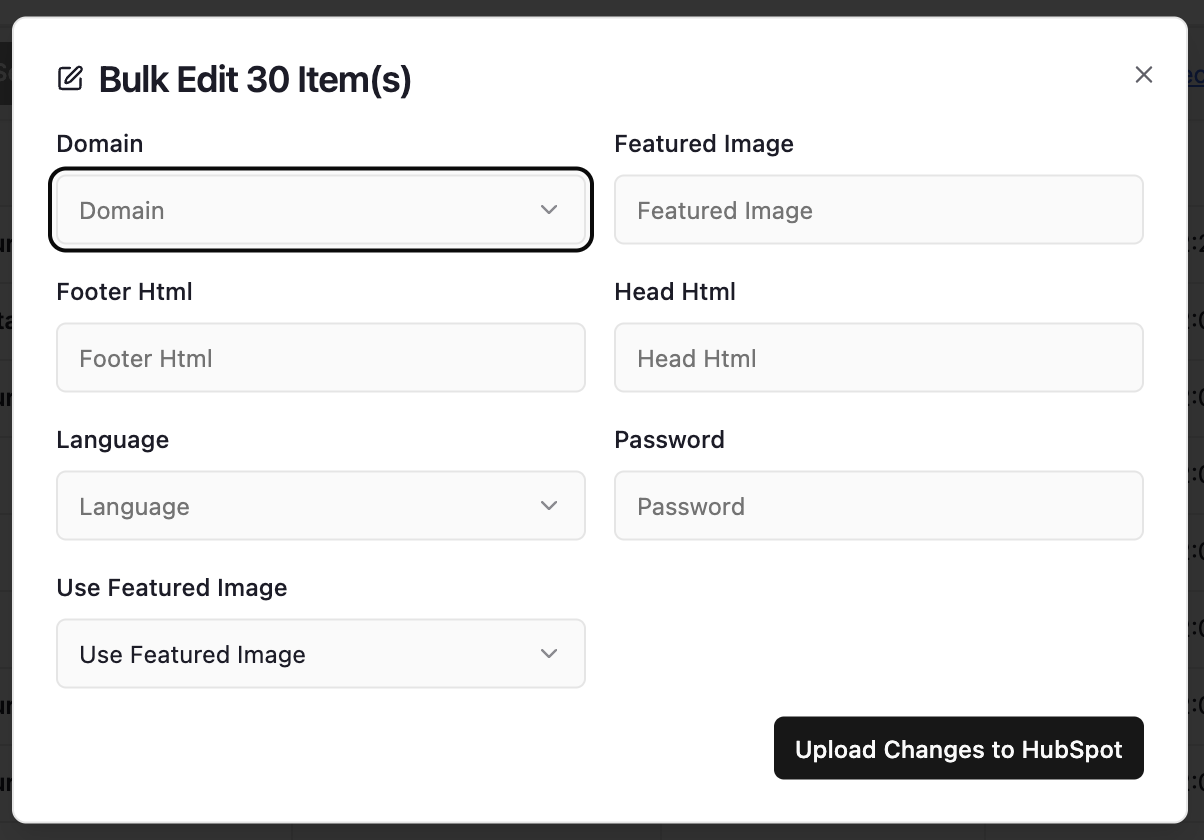
Click Actions, then select In-App Edit. This opens the editable view where you can update the fields that HubSpot allows you to modify. Make your changes directly in the table.
Once you are done editing, click Upload Changes to HubSpot. Smuves will push all your updates to HubSpot in one go.
Every change is tracked in the activity log, so you always have a record of what was updated and when.
That is it
Your Smuves HubSpot app is now set up.
You can also use Find and Replace to search and replace text across your entire CMS, export your content to CSV, import changes from a spreadsheet.
If you manage multiple HubSpot portals, you can connect additional portals from the settings page and switch between them using the portal switcher.
For detailed feature guides, visit the Smuves Documentation.