Most people assume that editing content directly inside HubSpot is the safe way to do it. It is the official interface. You can see the page. You can preview your changes. Everything happens inside the platform that hosts the content.
That assumption holds up when you are editing one page. Maybe two. It completely breaks down when you are editing 50 pages, or 200, or 500.
At that scale, editing inside HubSpot is not the safe option. It is actually the riskier one. And a spreadsheet, specifically Google Sheets connected to your portal, is the safer choice for almost every bulk content operation.
That sounds counterintuitive. Let me explain why it is not.
The isolation problem
When you edit a page inside HubSpot, you see that one page. You open the editor, you make your change, you save. Then you go back to the content dashboard, find the next page, open it, make the change, save. Repeat.
The problem is not the editing itself. The editing experience inside HubSpot is fine for individual pages. The problem is that you are making decisions in isolation. You cannot see the page you just edited alongside the page you are about to edit. You cannot compare values across pages. You cannot spot a pattern or catch an inconsistency because each page exists in its own editing window, disconnected from every other page.
Think about what happens when your SEO team hands you a list of 150 updated meta descriptions. You open the first blog post, paste in the new description, and save. You open the second blog post and paste in the next one. Somewhere around post number 40, you accidentally paste the description meant for post 39. You do not notice because you cannot see both posts at the same time. The mistake lives on your site until someone catches it in a crawl report weeks later.
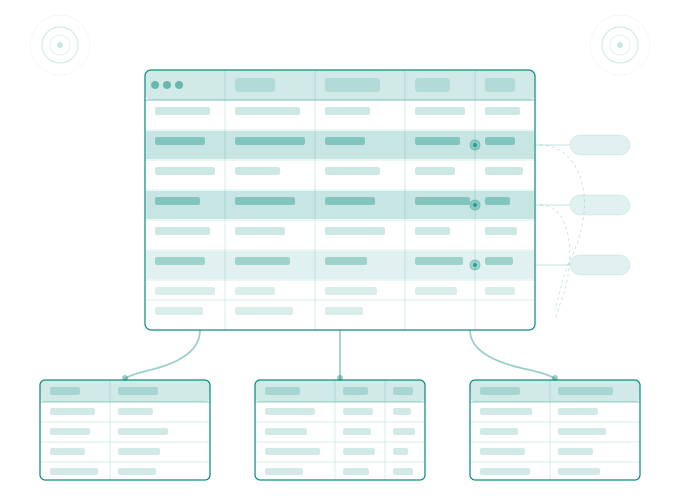
In a spreadsheet, that mistake is nearly impossible to make. Every page is a row. Every meta description is a cell in the same column. You can see 50 descriptions at once. You can sort, filter, and scan. If two rows have the same description, it is immediately obvious. If a description is pasted into the wrong row, the context around it, the page title, the URL, the publish date, tells you instantly.
The spreadsheet does not just make the work faster. It makes the work visible. And visibility is what keeps bulk edits safe.
Why review workflows matter at scale
Here is a scenario that plays out at agencies every week. A client asks for a site-wide update. Maybe they are changing their company phone number, or updating a legal disclaimer, or swapping out a discontinued product name. The agency assigns the task to a junior team member.
Inside HubSpot, there is no good way for a second person to review the changes before they go live. The junior team member edits each page, saves it, and the changes are either live immediately (for already-published pages) or sitting in draft without an easy way to see what specifically was changed. There is no diff view. There is no "here are all the changes I made across 80 pages, please review before I publish." The edit and the publish are essentially the same action for content that is already live.
In a spreadsheet, the review step is built into the workflow naturally. The junior team member makes all the changes in Google Sheets. Before pushing anything back to HubSpot, a senior team member opens the same sheet, scrolls through the changes, checks that the right cells were updated, and gives the go-ahead. Google Sheets even has a version history, so you can see exactly what changed, when, and by whom.
This is not a feature anyone had to build. It is just how spreadsheets work. Multiple people can see the data, comment on it, track changes, and agree on what should go live before anything touches the CMS. That review layer does not exist when you are editing pages one at a time inside HubSpot.
For agencies billing client hours, this also matters from a liability perspective. If something goes wrong with a bulk update, "we reviewed every change in the spreadsheet and the client approved it before we pushed" is a very different conversation than "we edited 200 pages individually and something must have slipped through."
The comparison advantage
One of the most common bulk editing tasks is normalizing inconsistent content. Your site refers to the same feature as "Automated Reports," "Auto Reports," and "Automatic Reporting" depending on when the page was written. You need to standardize the terminology.
Inside HubSpot, finding these inconsistencies requires opening pages individually and reading through the content. You might run a site search using your browser, but that only searches the page you are currently on. You might use Google Search Console or a crawl tool to export text, but then you still have to go back into HubSpot to make the changes one page at a time.
In a spreadsheet, you pull all your content into rows. You sort the column alphabetically. Every variation of the term clusters together. You can see "Automated Reports" on row 12, "Auto Reports" on row 14, and "Automatic Reporting" on row 16. The inconsistency is visible without any searching. You fix them all in the sheet, confirm the standardized version, and push the changes back.
The same comparison advantage applies to other common cleanup tasks. Spotting pages with missing meta descriptions is instant when you can sort by description length. Finding blog posts with the wrong author after a team restructure is a simple filter operation. Identifying landing pages that still reference a retired product is a text search across one column instead of 300 individual page editors.
Every one of these tasks is possible inside HubSpot. None of them is practical at scale. The page editor was designed for creating and refining individual pages. It was not designed for managing content as a dataset.
What goes wrong with one-at-a-time editing
The risks of editing pages one at a time are not hypothetical. Here are patterns that show up regularly in portals with more than a few hundred pages.
Partial updates are the most common problem. Someone starts a bulk update, gets through 60 pages, gets pulled into a meeting, and forgets to finish the remaining 40. Now your site has two different versions of the same content, and nobody knows which pages were updated and which were not. Inside HubSpot, there is no way to see "these 60 pages were edited today and these 40 were not" without manually checking each one.
Copy-paste errors are the second problem. When you are editing the same field across dozens of pages, your clipboard becomes your workflow. Copy the new value, open the page, paste, save, go to the next page. It is only a matter of time before you paste the wrong value, overwrite the wrong field, or accidentally paste formatted HTML into a plain text field. One bad paste into a module field can break the page layout in ways that are not immediately visible in the editor.
Inconsistent formatting is the third problem. When three different people are each editing a batch of pages inside HubSpot, they might format things slightly differently. One person puts the phone number as "(555) 123-4567" and another puts it as "555-123-4567" and a third writes "555.123.4567." These inconsistencies are invisible when you are editing one page at a time. In a spreadsheet, you see them lined up in a column and can normalize them before they go live.
The absence of a log is the fourth problem. When you edit a page inside HubSpot, the revision history for that individual page is updated. But there is no cross-page log that says "on Tuesday at 3pm, these 80 pages were updated with these specific changes." If something breaks and you need to figure out what changed and when, you are checking revision histories one page at a time.
Where the spreadsheet workflow fits
The spreadsheet is not a replacement for the HubSpot page editor. It is a different tool for a different kind of work. The page editor is the right tool when you are crafting a single page, writing new content, adjusting layout, working with modules, or previewing how things look on the live site.
The spreadsheet is the right tool when you are working with data across pages. When the task is "update this value on these 200 pages" or "review these fields across all blog posts" or "clean up inconsistencies before a migration," you are doing data operations, not page editing. And data operations belong in a data tool.
This is the same distinction that exists in every other part of your stack. Your CRM gives you a record view for working on one contact and a table view for working across all contacts. Your project management tool gives you a task detail view and a board or spreadsheet view for seeing everything at once. Your CMS should work the same way. Individual page editing for individual pages, and a spreadsheet view for everything else.
How Smuves makes this work
This is exactly the workflow we built at Smuves. You connect your HubSpot portal, and your content appears in a spreadsheet interface. Pages, blog posts, landing pages, and HubDB tables all show up as rows and columns. You can sort, filter, search, and edit directly in the sheet.
When you are ready to push changes, every edit is previewed before anything goes live. You see the old value and the new value side by side, and you confirm what gets pushed back to HubSpot. Every change is logged in the Activity Monitor so you have a clear record of what changed, when, and who did it.
For teams using the Google Sheets integration, the workflow is even more natural. Your HubSpot content syncs into a Google Sheet where your team can review, comment, and collaborate using the tools they already know. When the changes are ready, they push back to HubSpot with a click.
No scripts, no API workarounds, no CSV exports that lose data on the round trip. Just your content as structured data in the tool that was designed for working with structured data.
A quick test to see if this applies to you
If you are unsure whether your team needs a spreadsheet workflow for HubSpot, answer this: when was the last time someone on your team needed to update the same field across more than 10 pages?
If the answer is within the last month, you are already doing bulk content operations. The question is whether you are doing them safely.
Open your HubSpot blog listing. Sort by oldest first. Look at the meta descriptions on your first 20 blog posts. Are they consistent? Are any of them empty? Do any of them reference a product name or feature that has since changed? Now imagine fixing every issue you found, across every post on the site, one page at a time.
That is the workflow a spreadsheet replaces. And that is why editing in a spreadsheet is not a shortcut or a workaround. For bulk content changes, it is genuinely the safer option.
If you are managing more than 50 pages in HubSpot and you have ever wished you could just see all your content in one place before making changes, Smuves is worth trying. The free beta lets you connect your portal and see your content as a spreadsheet for the first time.
Smuves is the bulk CMS editor that HubSpot never built. If you are tired of updating pages one at a time, try the free beta and see your content in a spreadsheet view for the first time.